Watch it first
The videos have captions and no voice, so pause wherever you need to. The steps below match them.
Is this right for your site?
This guide fits a site that is mostly pages to read and look at:
- Under about 20 pages
- Built on Squarespace version 7.1 (most sites made since 2020 are)
- One contact form, maybe a blog you add to now and then
Stay on Squarespace if your site has a shop with a cart, member areas or paid courses, or a blog you post to every week. Those have no simple free replacement, and Squarespace does them well.
Not sure which version you're on? Squarespace's help article "Which version of Squarespace am I using?" shows how to tell. This guide hasn't been tested on 7.0.
What you'll need
- Your Squarespace login
- Google Chrome with NudgeCSS. Saving your first page is free. Saving the whole site at once is NudgeCSS Bridge+, $60, paid once.
- A free Cloudflare account (or Netlify, for bigger sites)
- A free Web3Forms account, for your contact form
- A plain text editor. TextEdit on a Mac (set to plain text) or Notepad on Windows is fine.
- A "Move notes" document, filled in as you go
Your Move notes are your record of how things were before you changed anything, so you can put them back. Copy this into a document:
MY MOVE NOTES

Website address (as visitors type it):
Squarespace version (7.0 or 7.1):
Domain bought through:           Domain renews on:
Email provided by:               Email billed through:
My DNS records before the move:
My URL Mappings before the move:
Pages I am keeping:
Pages I am dropping (and where each should send visitors):
File count of the saved folder:
Test address:
Contact form test: sent / received (date):
Step 1. Write down how things are now
Reading only. Nothing changes in this step.
- Domain. In Squarespace, open Domains. Note who your domain is registered with and when it renews. Turn auto-renew on if it's off.
- DNS records. Click the domain, then DNS. Take a screenshot of the whole page and copy every record into your Move notes.
- Email. Note where your email comes from and who bills you for it.
- URL Mappings. Open Settings, then Developer Tools, then URL Mappings. Copy everything in the box, even if it's empty.
- Backup. Open Settings, then Website, then Import & Export Content, then Export, and choose WordPress. Keep the file. You won't use it to move the site. It's a backup of your words.
To see your email records from outside Squarespace, open Google's free Dig tool, type your domain and click MX. Those lines must never change during the move.
Step 2. List your pages
- Open
yoursite.com/sitemap.xmlin your browser. It lists every page Squarespace tells Google about. - Copy the page addresses into your Move notes and mark each one keep or drop.
- Good pages to drop: blog tag pages (with
/tag/in the address), duplicate home pages such as/home, and old test pages. - For every page you drop, write which page visitors should land on instead.
www or not, as before. If an address must change, forward it to the one page that replaced it (Step 5), never to your home page.Step 3. Save your site with its design
- Open your live site in Chrome, at its public address, not the Squarespace editor. If it has a site-wide password, enter it. Stay logged out of Squarespace: while you are logged in, Squarespace shows you the editor instead of the site.
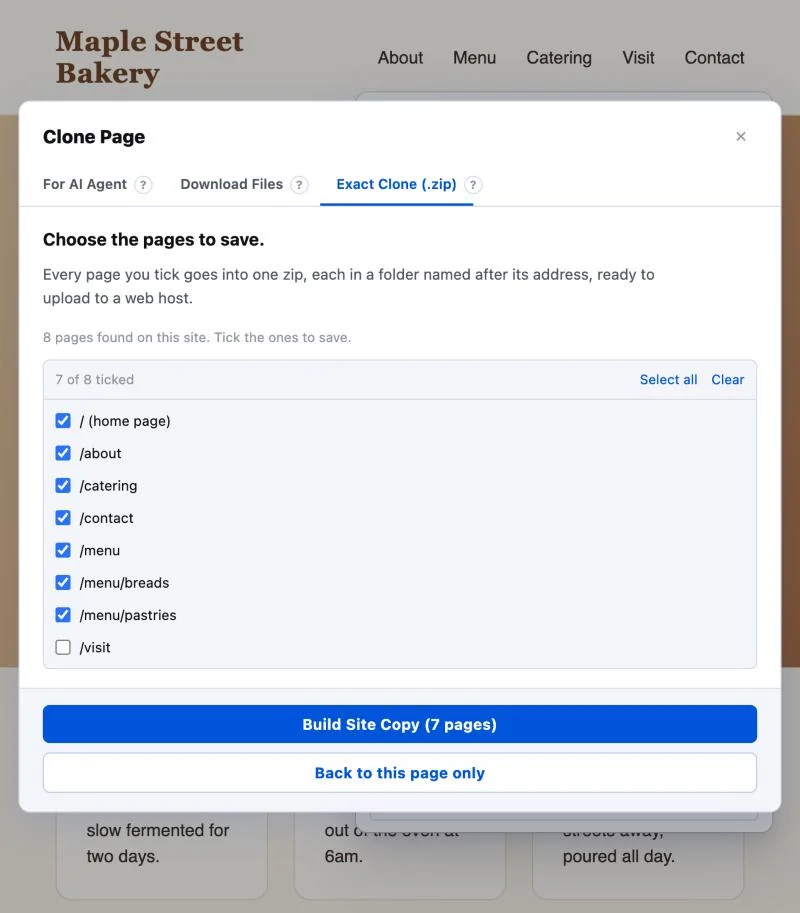
- Click the NudgeCSS icon, then Clone Page at the bottom of the panel.
- On the Exact Clone (.zip) tab, leave Standalone copy ticked and click Save more than one page.
- Tick the pages you're keeping (your list from Step 2), then click Build Site Copy.
- Stay on the tab while it works. Each page opens, scrolls by itself and is saved. About 30 pages takes around six minutes.
- Unzip the file. Keep the zip as a backup. From now on, the folder is your website.
- Right-click the folder and choose Get Info (Mac) or Properties (Windows). Write the number of items in your Move notes. Finder counts folders too, so its number is a little higher than the file count your host shows.
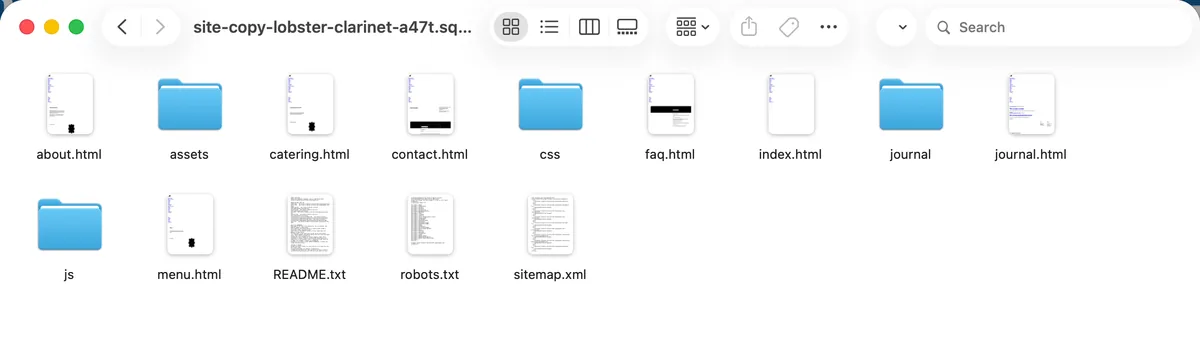
about.html holds what used to be yoursite.com/about, and the host serves it at that same address. Your home page is index.html. A host only has to hand these files to visitors, which is why hosting can be free.Check: open README.txt in the folder. It lists every page saved; compare it to your keep list. The folder also has sitemap.xml (your page list for Google) and robots.txt (copied from your old site). Leave both as they are.
Step 4. Make your contact form work again
The saved form looks right but has nowhere to send messages. Squarespace's code handled that, and it was removed so your site no longer depends on Squarespace.
- Sign up at web3forms.com with the email address where messages should arrive. They email you an access key, a long code. The free plan covers 250 messages a month.
- Find every page with a form: search the folder for
<form(on a Mac, Finder search can look inside files). Make a copy of each of those files before you change anything. - In each file, make four changes:
- Give the form an address to send to. Change the opening
<form ...>tag so it includesaction="https://api.web3forms.com/submit" method="POST". - Add your key. Right after that tag, add
<input type="hidden" name="access_key" value="YOUR-ACCESS-KEY">. - Name every field. Each
<input>,<select>and<textarea>needs a plainname, such asname="email". A field without a name arrives blank. - Remove Squarespace's hidden trap field. It's an input with an
idlikemessage-fieldandautocomplete="new-password". Left in, it can make real messages look like spam.
- Give the form an address to send to. Change the opening
- Look closely at the form on the page afterwards. These files are long, and hand edits slip easily. Compare with your copy if anything looks off.
README.txt, and ask for the four changes as find-and-replace steps. Our contact form prompt is ready to copy.You'll test the form in Step 6.
Step 5. Keep your old addresses working
- If your saved folder already has a
_redirectsfile, open it. NudgeCSS writes one when it finds old addresses that forwarded on Squarespace. If not, make a new plain-text file. - Add one line for each forward you need, in the form old address, new address, 301:
/our-story /about 301 /cakes /catering 301 /home / 301 - Include every line from your URL Mappings (Step 1). Squarespace writes them as
/old -> /new 301. Delete the arrow, so it reads/old /new 301. Then add every page you dropped in Step 2. - Save it as
_redirects: underscore first, with no.txtat the end. If TextEdit adds.txt, remove it in Finder and confirm. - Put it in the top of your site folder, next to
index.html.
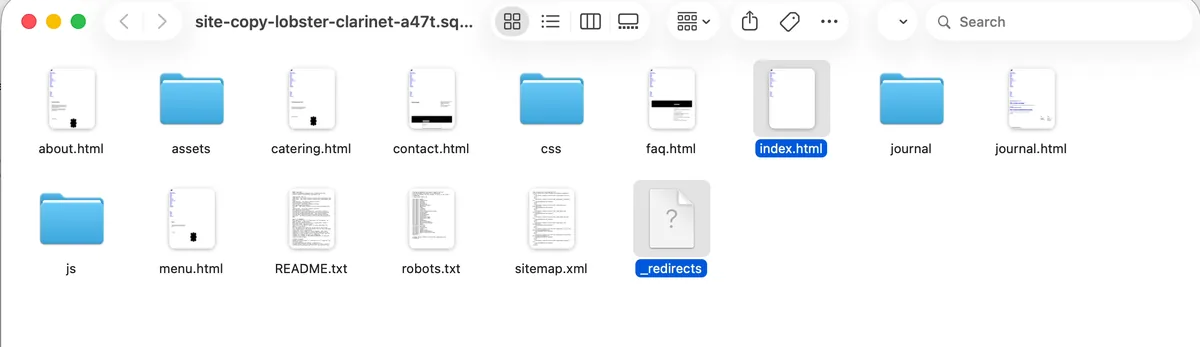
_redirects file sits next to index.html, with no .txt ending.Step 6. Put your site online at a test address
Count first. Cloudflare's drag and drop takes up to 1,000 files. Under that, use Cloudflare. Over that, use Netlify Drop. The steps are the same with either.
Cloudflare (under 1,000 files)
- Sign in to Cloudflare and open Workers & Pages.
- Click Create application, then Upload your static files. You don't need the "legacy Pages workflow" it also offers.
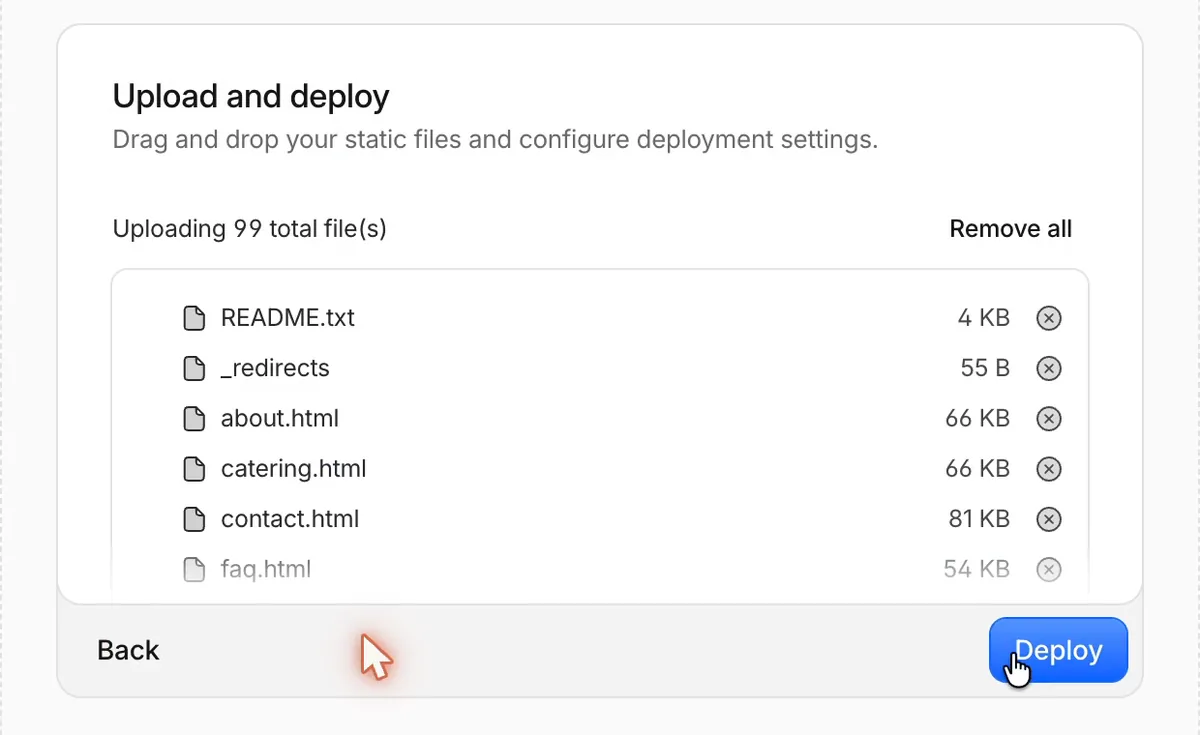
- Drag your whole site folder into the upload box and click Deploy.
- Cloudflare gives the project a random name. Rename it under the project's Settings, then General, then Name. The name becomes part of your test address.
- Write the test address, ending in
.workers.dev, in your Move notes.
Netlify Drop (over 1,000 files)
- Go to app.netlify.com/drop, sign in with a free account and drag in your site folder. If Netlify opens an AI agent page afterwards, you don't need it.
- Make it public. New Netlify projects are private, so visitors see a login page. On the project overview, click Make public.
- Turn off the badge. In Project configuration, then General, switch off Powered by Netlify badge. On a phone it can cover a button.
- Netlify's free plan has a monthly allowance. A busy, photo-heavy site can use it up, and Netlify then pauses the site until the next month.
Check, at the test address, not by opening files on your computer (links don't work that way):
- Open every page, on a computer and on a phone.
- Open the phone menu and tap every link.
- Look for missing pictures or odd fonts.
- Send yourself a message through every contact form. It should arrive within a few minutes. Check spam the first time.
- Type a few old addresses from your
_redirectsfile after the test address, like/our-story. Each should land on the right page.
If something is wrong, fix the file on your computer and upload the folder again as a new deployment. Nothing reaches your real visitors yet, so take as many tries as you need.
What's next
Your site works at a test address. The next steps are connecting your domain, checking your email the same day, and cancelling only the website plan after two weeks. That guide is coming soon. Until then, leave your domain and your Squarespace plan exactly as they are.
Common questions
Can I move my Squarespace site to free hosting?
Yes, if it is a simple site: under about 20 pages, on Squarespace 7.1, with one contact form and maybe a blog you add to now and then. You save the site as ordinary web files and put them on a free host such as Cloudflare. Shops, member areas and weekly blogs are better left on Squarespace.
Will my site look the same?
Yes. NudgeCSS saves each page with its layout, styling, images and fonts, and rebuilds the mobile menu on Squarespace 7.1 templates. Parts that ran on Squarespace's own code, such as forms, need rebuilding. The contact form step below covers that.
Will I lose my Google rankings?
Not if every page keeps exactly the same address. NudgeCSS names each saved page after its old address, so the host serves it there. Any page you drop or rename gets a permanent forward in a _redirects file, which tells Google the page moved for good.
What does this cost?
Hosting on Cloudflare's free plan costs nothing, and so does Web3Forms' free plan for the contact form. Saving your first page with NudgeCSS is free. Saving the whole site at once is NudgeCSS Bridge+, $60, paid once. You keep paying for your domain and email, as you do now.
Does this move my domain and email?
No. This guide stops at a free test address, so nothing your visitors see changes yet. Connecting your domain comes in a later guide. Until then, keep your Squarespace plan running.
Try it on your own site
NudgeCSS is free to install and edit with. No account needed.