The short answer
Squarespace has an export button, but it does not export your design. To keep how your site looks, you save your pages as ordinary web files and put those on a new host.
You can do all of it by hand. An AI assistant such as ChatGPT or Claude makes the last part, the rebuilding, much smoother. Both routes are below.
What Squarespace's export gives you
In Squarespace, the export lives under Settings, Advanced, Import & Export. It produces one file in WordPress format.
- Included: regular pages, the text and images on them, and one blog with its posts.
- Left out: your style settings, your Custom CSS, store pages and products, portfolio and event pages, video and audio, and anything in page headers and footers.
That file is useful if you plan to rebuild on WordPress, but it won't give you a site that looks like your old Squarespace site. Squarespace's own list of what will be intact on export can be found here in their help center, Exporting your site.
Save your pages with their design
NudgeCSS is a Chrome extension. Its Exact Clone tool saves pages as they look today: the layout, styling, images, and fonts, with Squarespace's scripts and trackers removed so the copy does not depend on Squarespace. On current Squarespace templates (version 7.1), it also rebuilds the mobile menu so it keeps working.
- Install NudgeCSS and open your live site in Chrome. Use the public address, not the Squarespace editor.
- Click the NudgeCSS icon, then Clone Page at the bottom of the panel.
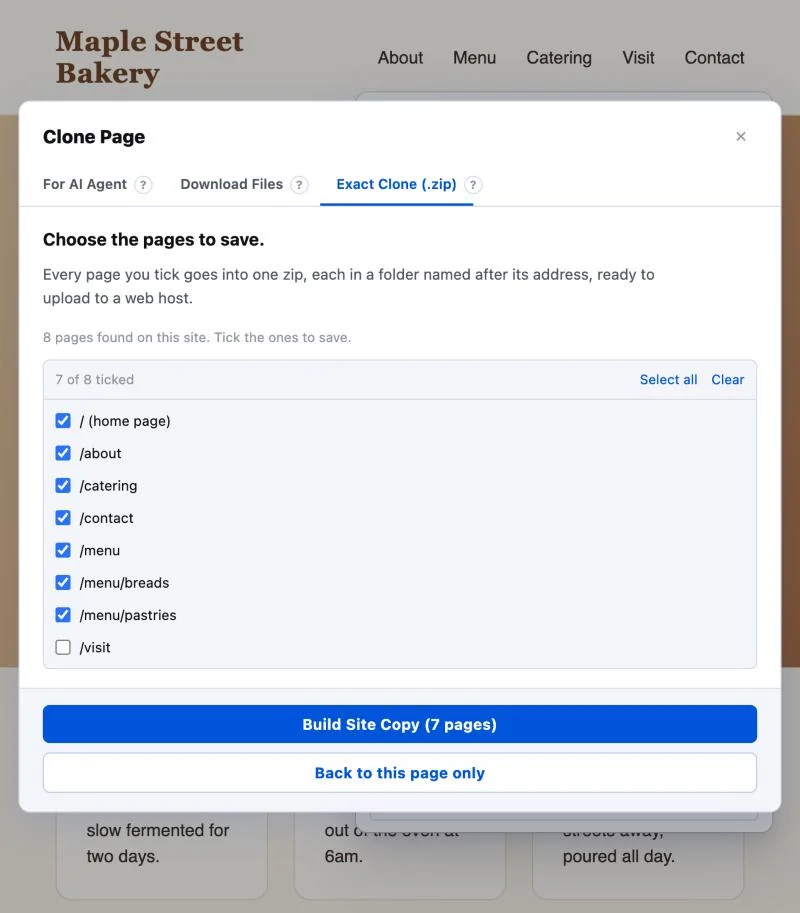
- On the Exact Clone (.zip) tab, click Save more than one page. NudgeCSS lists the pages of your site.
- Tick the pages you want and click Build Site Copy.
- Stay on that tab while it works. Each page opens, scrolls by itself so everything loads, and is saved. A site of about 30 pages takes around six minutes.
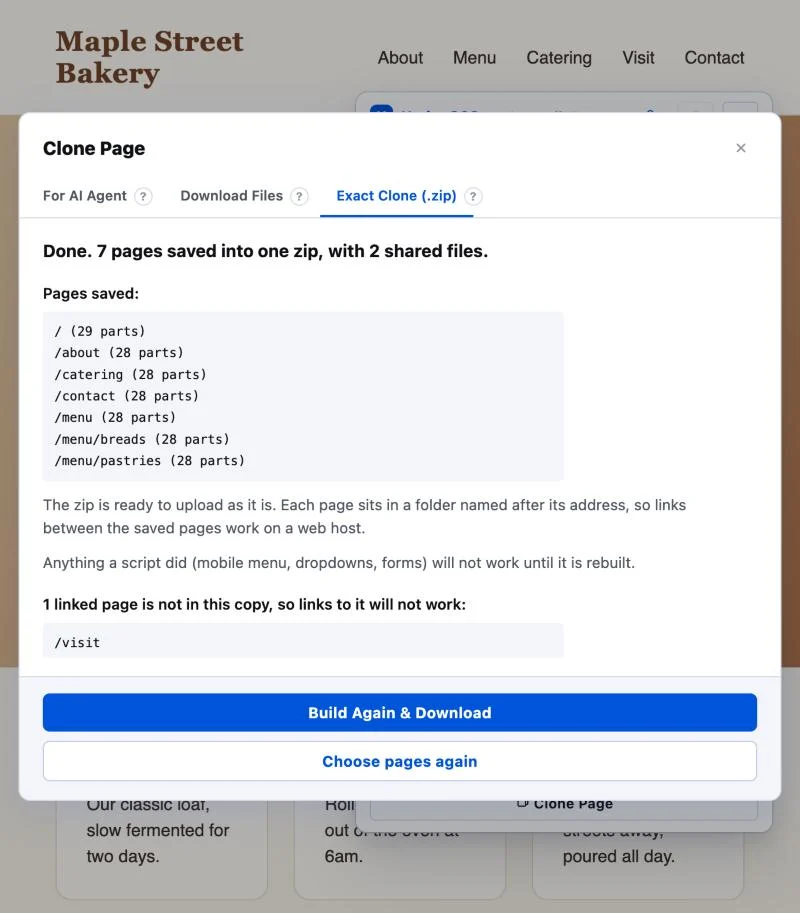
You get one zip file. When it finishes, NudgeCSS tells you which pages were saved and lists anything that could not be.
Put the copy on a new host
The zip is already arranged the way a web host needs it. Your home page is the index.html file at the top. Every other page is an index.html inside a folder named after its old address, so a page at yoursite.com/about sits in a folder called about. The styles, images, and fonts the pages share are stored once, in the css and assets folders. A README.txt file lists the pages and explains the copy.
- Unzip the file.
- Upload the whole folder to your new host, without renaming anything. Several hosts have free plans for simple sites.
- Open the site at the address your host gives you and click every link in the menu. Keeping the folder names is what lets those links keep working.
If an old address used to send visitors on to another page, the copy includes a small forwarding page at that address, so old links and search results keep working.
index.html by double-clicking it, links to other pages will not work and a logo or icon may be missing. That is your browser being careful with local files. The copy is fine once it is online.What will need rebuilding
The saved pages keep their look, and on current Squarespace templates the mobile menu keeps working. The other parts that ran on Squarespace's own code do not come along:
- Forms. A contact form needs somewhere new to send its messages.
- Shop, cart, and member areas. These need a new service.
- Site search and visitor statistics.
None of this is a dead end. Each one can be rebuilt by hand with a little web knowledge, replaced with a ready-made service, or handed to an AI assistant.
Using an AI assistant to finish the job
This is where an assistant such as ChatGPT or Claude earns its place. A saved page is plain web code, which is exactly what these assistants read and write well. You give it your saved copy and ask for one thing at a time.
A good way to start is to explain the whole situation once. Copy this, change anything that does not fit, and paste it in as your first message:
I saved my Squarespace website using NudgeCSS. I have one zip file. It holds an index.html file for each page, in folders named after each page's old address, plus a css folder, an assets folder with the images and fonts, and a README.txt file that lists the pages and explains the copy. Please read README.txt first.

Squarespace's scripts were removed on purpose. The mobile menu already works. The contact form does not send messages yet.

I am not a programmer. Please help me rebuild my website, one step at a time:

1. Recommend a free or low-cost web host for a simple site like this.
2. Walk me through putting these files online.
3. Make the contact form work again.
4. Keep every page at the same web address it had before.

I will upload the zip now. If it is too large to upload, tell me which files you want to see.
After that, smaller requests work well, one at a time:
- "Replace the contact form on this page with one that sends messages to my email using a form service. Tell me what I need to sign up for."
- "These pages share the same header and footer. Tidy them so I only have to change the menu in one place."
- "Explain in plain words what each folder in this zip is for."
- "Give me your changes as find and replace steps I can follow in a text editor."
Three things help:
- Upload the whole zip if your assistant accepts it. A site with many pictures can be too large. If so, upload
README.txtand theindex.htmlof the page you are working on, and add thecssfolder if it asks to see the styles. - Expect instructions, not a finished file. The assistant will usually tell you what to find in
index.htmland what to replace it with. Make a copy of the file first, then use Find in a text editor. - Edit the same copy you uploaded. If you saved your site more than once, unzip the newest zip. The steps will not match an older copy.
Expect a second try now and then. If a fix does not work the first time, tell the assistant exactly what you see and ask again.
NudgeCSS also has a For AI Agent tab in the same Clone Page window. It gives you the page's text and structure as one block to paste straight into an assistant, which is handy when you want the assistant to rebuild a page from scratch.
If you would rather not use an assistant, the same jobs can go to a freelancer, and the saved pages give them a finished design to work from.
Before you cancel Squarespace
- Your domain. If you bought your web address through Squarespace, move it or point it at your new host first.
- Your email. If your email runs through Squarespace, cancelling can cut it off. Move it before you cancel.
- Your old addresses. Keep each page at the same address, so links from Google and other sites still work.
- Licensed items. Some fonts and stock images are licensed for use on Squarespace only. Replace any that are.
- A full check. Open every page on the new host, on a phone and a computer, before you cancel anything.
Keep your Squarespace plan running until the new site has been live and working for a few days.
Common questions
Can I export my Squarespace site with its design?
Not with Squarespace's own export. It produces a WordPress-format file containing page text, images, and one blog. Squarespace's help page says style settings and Custom CSS are not exported, so the design has to be saved another way or rebuilt.
Do I need ChatGPT or another AI assistant to move my site?
No. You can save your pages and put them on a new host by hand. An AI assistant makes the remaining work much smoother, because it can rebuild the parts that stop working, such as the contact form, from the saved files.
What stops working when I move a page off Squarespace?
Anything that ran on Squarespace's own code: forms, the shop and cart, member areas, and site search. The layout, text, images, and fonts are kept. On current Squarespace templates (version 7.1), NudgeCSS also rebuilds the mobile menu, so it works in the saved copy.
Does NudgeCSS copy my whole site at once?
Yes, with Bridge+. It lists the pages of your site, you tick the ones you want, and it saves them into one zip, already sorted into folders named after each page. A site of about 30 pages takes around six minutes. Your first page is free, so you can see the result before paying.
Is it okay to copy my own Squarespace site?
Your text and your own images are yours to take. Some things on the page may be licensed only for use on Squarespace, such as certain fonts, stock images, and Squarespace's own code. Check those before you publish the copy somewhere else.
Try it on your own site
NudgeCSS is free to install and edit with. No account needed.